

Forgot your ChatGPT password? Or just tightening up your account security? Either way, you’re in the right place. Changing your ChatGPT password in 2026 is fast, simple, and takes less than two minutes if you know exactly where to click.
In this guide, you’ll get straight-to-the-point steps with zero fluff. Every tap, click, and confirmation is laid out clearly, so you can reset your password without confusion, delays, or tech headaches. I’ll also share a few smart security tips to help you lock down your account properly.
Let’s get your access back and your security upgraded.
Why Change Your ChatGPT Password?
This isn’t just about forgetting a password; it’s about control. In 2026, account security isn’t optional. Data leaks, phishing attacks, session hijacking, and shared devices are everyday risks, not rare events. Updating your password regularly is one of the simplest ways to shut those doors before they open.
If you reuse passwords (most people still do), changing your ChatGPT password instantly reduces your exposure across multiple platforms. One fresh credential can break an entire chain of risk.
And if you’ve ever logged in on a public computer, shared device, or unsecured network, a password change isn’t “extra,” it’s essential. It resets trust, clears uncertainty, and puts your account back under your control.
How to Change Your ChatGPT Password
Here’s the core of it, your clear, actionable steps for 2026. Whether you’re on desktop, mobile, or the latest app version, the process is streamlined and secure. Follow along, and you’ll have your new password set up in just a few minutes.
Step 1: Go to the ChatGPT Login Page
Start by heading to the official ChatGPT login page. If you’re already logged in, log out first to access the password reset option. This ensures you’re starting from a clean slate.
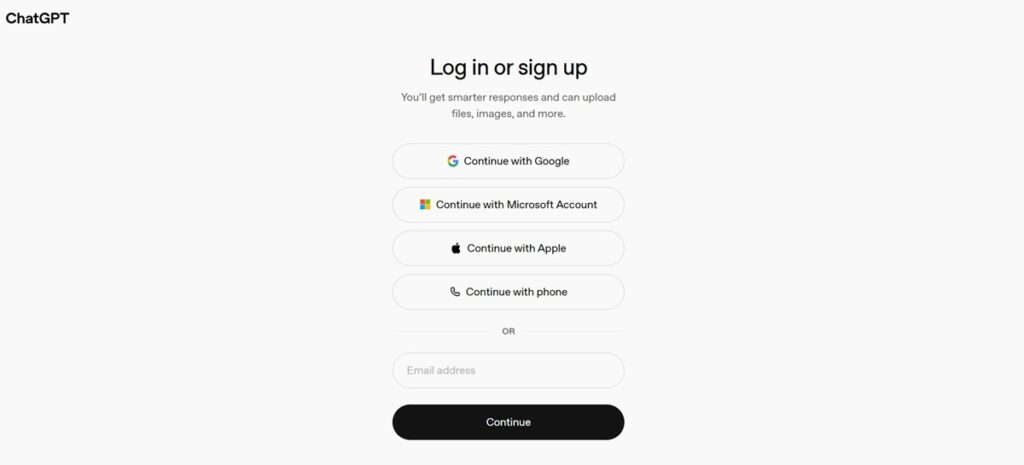
Step 2: Enter Your Email Address
On the login page, enter your email address and hit continue.
Step 3: Click “Forgot Password?”
On the login screen, after entering the email, it will ask for the password. Look for the “Forgot password?” link. It’s right below the password field.
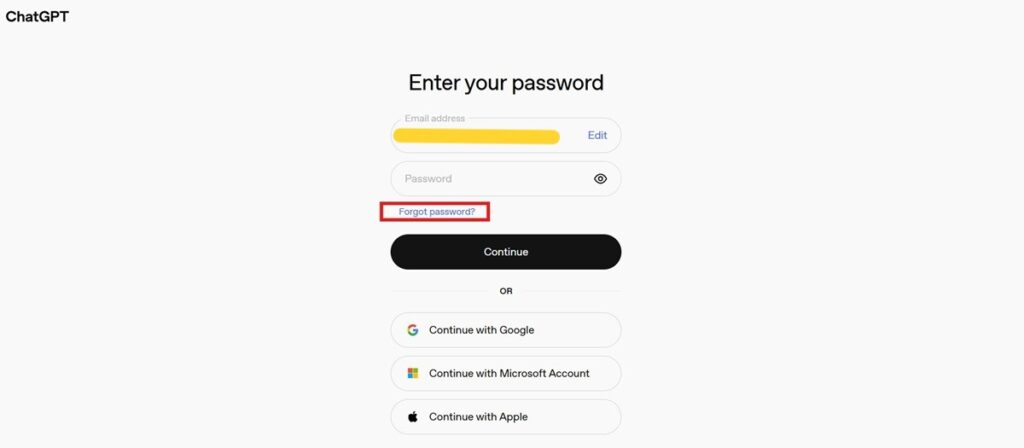
Click it, and it will ask you to click “Continue” to reset your password for your email.
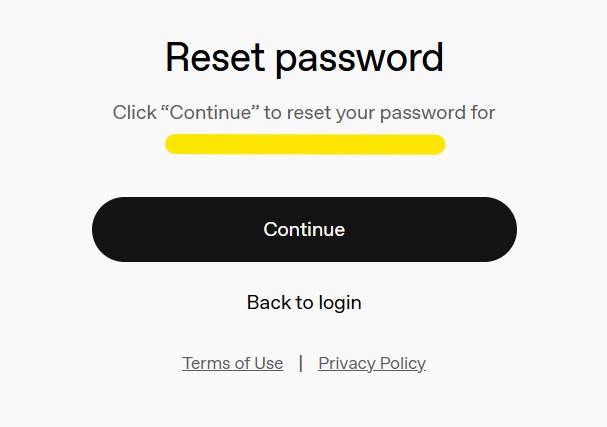
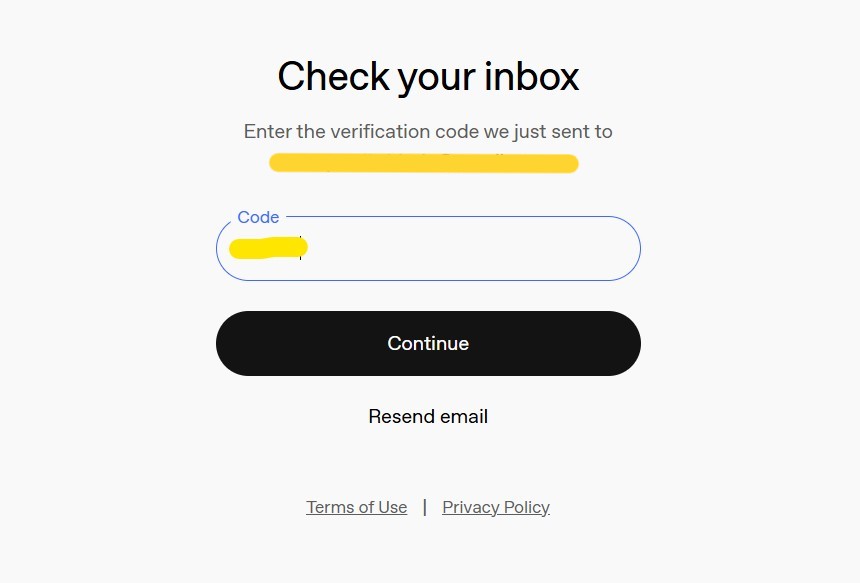
After clicking continue, it will ask for a six-digit verification code.
Step 4: Check Your Email Inbox for Verification Code
Within a minute or two, you should receive an email with a six-digit verification code. If it’s not in your inbox, check your spam or promotions folders. Still nothing? Wait five more minutes, then try again.
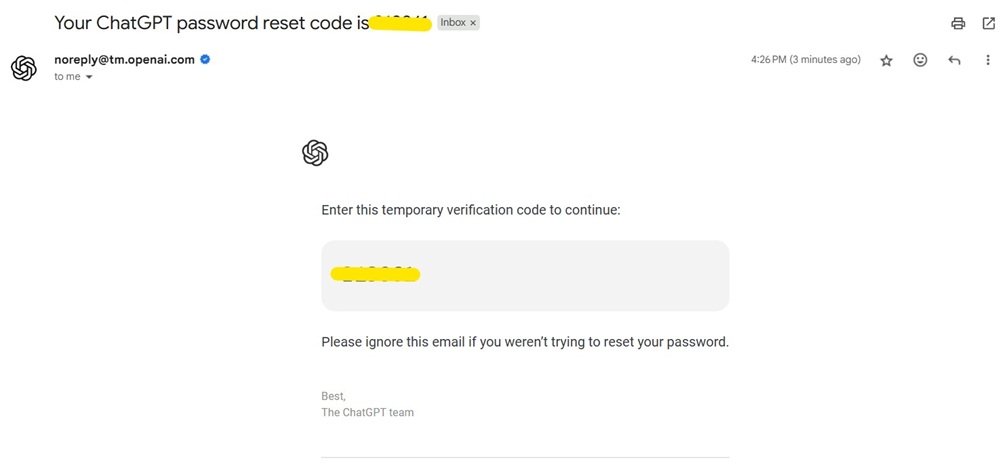
Enter your six-digit verification code.
Step 5: Set Your New Password
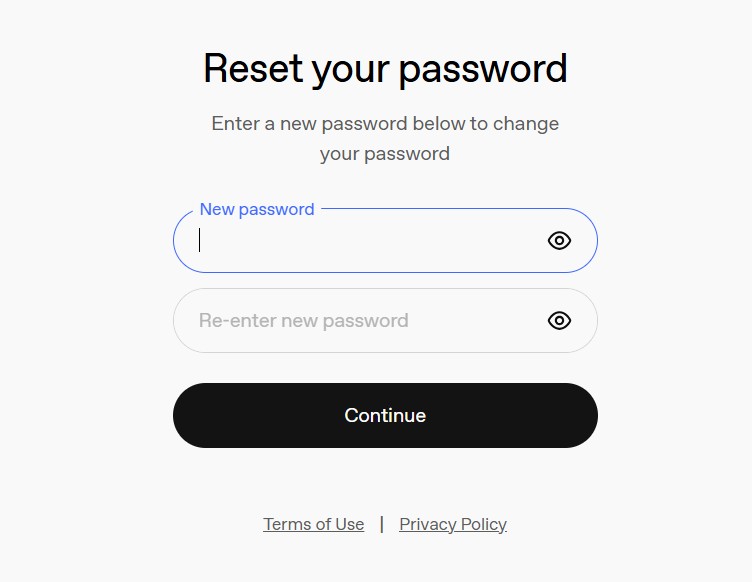
After verification, you will be asked to enter a new password. Choose a strong, unique password. Aim for at least 12 characters with a mix of letters, numbers, and symbols. Enter it twice to confirm, then submit.
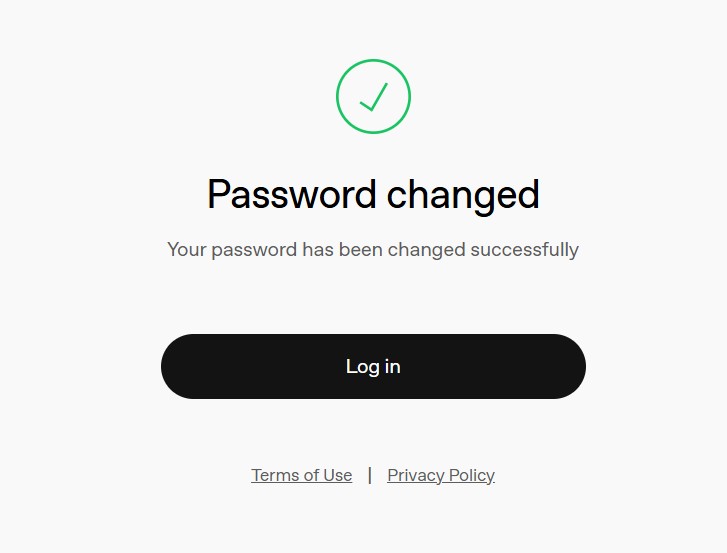
You’ll get a success message if all goes well.
Step 6: Log In With Your New Password
Return to the ChatGPT login page and sign in with your new password. If you use a password manager, save the update now to avoid future headaches. Congrats, your account is now more secure.
Troubleshooting Common Password Issues
Even simple logins can hit a snag, but most ChatGPT password issues in 2026 are easy to fix. Here are the common problems and quick solutions to get you back in fast.
Didn’t Get the Reset Email?
Start by checking your spam, promotions, and junk folders; automated emails often land there. If nothing appears after five minutes, request a new reset link. Carefully re-enter your email address and watch for typos. If delays continue, wait a few minutes before retrying to avoid triggering security filters.
Verification Code Expired?
Security codes are intentionally short-lived to prevent misuse. If your code expires, restart the reset process and use the newest one sent. Avoid switching tabs, closing your browser, or delaying the process. Quick action ensures smooth verification and keeps your account protected from unauthorized access attempts.
Can’t Remember Your Signup Email?
If you use multiple email accounts, search each inbox for old ChatGPT messages or login alerts. This usually reveals the correct address within seconds. Still stuck? Contact ChatGPT support with any available account details. Identity checks may take time, but they’re essential to prevent unauthorized account recovery.
New Password Not Accepted?
ChatGPT enforces stricter password rules in 2026 to boost security. Use at least 12 characters, mix upper and lowercase letters, include numbers and symbols, and avoid common phrases. Don’t reuse old passwords. A strong, unique password not only passes validation, but it also dramatically lowers your risk of future breaches.
Tips for a Strong and Memorable Password
Let’s be honest, most of us are bad at passwords. But a little effort goes a long way. Here are some quick tips for creating a password that’s tough to crack and easy to remember:
- Use at least 12 characters.
- Mix uppercase, lowercase, numbers, and symbols.
- Avoid dictionary words and personal info.
- Consider a passphrase or a string of unrelated words.
Password managers are your friend. They generate and store complex passwords so you don’t have to remember them all. If you’re not using one in 2026, now’s a great time to start.
What If You Signed Up With Google, Apple, or Microsoft?
If you used a single sign-on (SSO) option like Google, Apple, or Microsoft to create your ChatGPT account, things work a bit differently. You don’t have a separate ChatGPT password—instead, your account security is tied to your Google, Apple, or Microsoft credentials.
To change your password, update it through your SSO provider. For example, if you signed up with Google, changing your Google password will update your ChatGPT login as well. The reset steps above won’t apply in this case.
How Often Should You Change Your ChatGPT Password?
There’s no magic number, but most security experts suggest changing important passwords at least once a year. If you suspect a breach or notice suspicious activity, update your password immediately. Regular updates are a simple way to keep your account safe in 2026.
Final Thoughts: Keep Your ChatGPT Account Secure
In 2026, digital security isn’t a “nice to have,” it’s a baseline. Updating your ChatGPT password takes less time than brewing a coffee, yet it shuts down a huge percentage of common account risks. Make it a habit, not a reaction. Small security actions, repeated consistently, deliver outsized protection.
If something doesn’t go as planned, don’t guess your way through it. ChatGPT’s official help resources and support team exist for a reason, and using them early can save you hours of frustration. Smart users fix problems fast, not heroically.
And if this guide saved you time today, keep it handy. Because when passwords slip your mind (and they will), having a clear, reliable walkthrough beats starting from scratch every single time.
Also, read more about –
