
Maybe you’re done experimenting with AI. Maybe you’re trimming digital clutter. Or maybe you just want full control over your data. Whatever the reason, deleting your ChatGPT account in 2026 is simple, but only if you follow the right steps.
This guide gives you the fastest, cleanest way to permanently delete your ChatGPT account. No fluff. No guesswork. You’ll learn exactly how the process works, what data gets erased, what doesn’t, and the few things you should double-check before hitting delete. Consider this your no-nonsense exit plan.
If you’re ready to close the loop and clean up your online footprint, let’s do it properly. Here’s how to permanently delete your ChatGPT account, start to finish.
Understanding ChatGPT Account Deletion
Before you hit delete, it’s worth knowing exactly what that decision triggers. Deleting your ChatGPT account permanently removes your personal details, chat history, and any billing information linked to your profile. This isn’t a pause or a reset; it’s a full wipe. Once the process is complete, there’s no undo button.
Account deletion is final. OpenAI cannot recover your data, restore conversations, or reactivate the same account later. If there’s even a small chance you’ll want access to your chats or records in the future, download your data first. Otherwise, proceed only when you’re confident you’re done.
For most people, deletion makes sense when privacy, simplicity, or digital cleanup is the goal. Just make sure you’re closing the door intentionally because once it shuts, it stays shut.
What Happens When You Delete Your ChatGPT Account?
When you delete your ChatGPT account in 2026, everything tied to it is permanently removed. Your entire chat history, every prompt, response, and saved conversation, disappears for good, with no backup and no recovery option. If there’s anything you might want to reference later, download your data first, because once the account is gone, so is the record of your interactions.
At the same time, your personal details and payment information are erased from the system. That includes your email address, profile data, and any billing methods you’ve used. This ensures your privacy is protected and eliminates the risk of accidental charges or unauthorized access after deletion.
If you’re on a paid plan like ChatGPT Plus, deleting your account automatically cancels your subscription. You’ll lose access to all premium features immediately, and there’s no way to restore them without creating a brand-new account. In short, account deletion is a clean, final, and irreversible.
Important Things to Do Before Deleting ChatGPT Account
Before you permanently delete your ChatGPT account, take two minutes to cover the basics. These quick checks protect your data, prevent billing surprises, and ensure a clean exit, no loose ends, no regrets.
- Download your data: Export your chats and settings from Data Controls. You’ll receive a download link by email. Once your account is deleted, there’s no way back.
- Cancel subscriptions: Account deletion should end billing automatically, but verify in the Billing section to avoid surprise charges.
- Log out everywhere: Sign out from all devices to close any active sessions and lock things down properly.
Key Steps to Delete Your ChatGPT Account
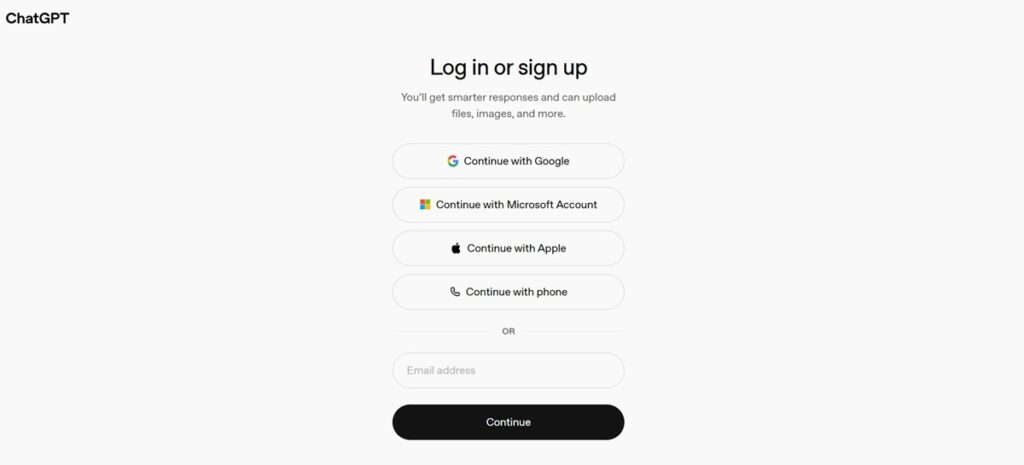
Step 1: Log In to Your Account
Start by heading to chat.openai.com and logging in. If you’ve forgotten your password, use the reset feature to get back in.
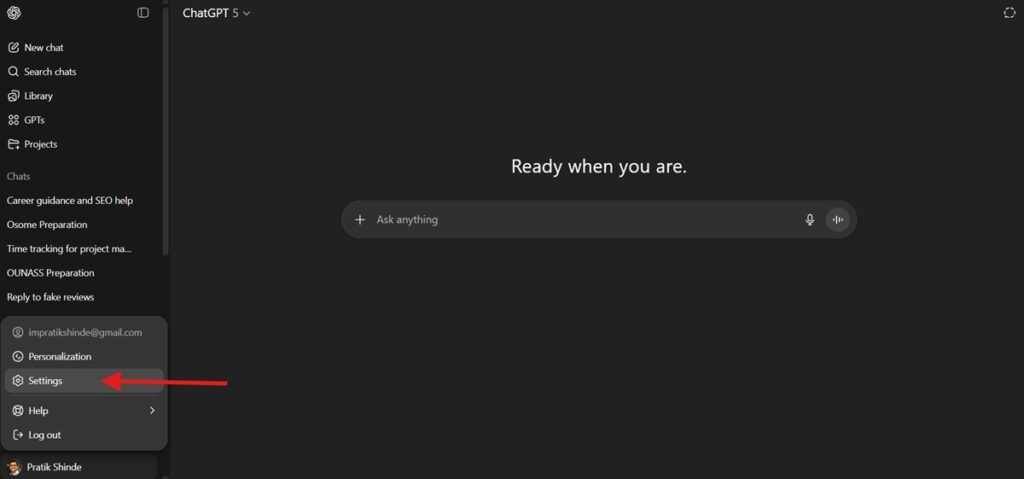
Step 2: Go to Settings
Once you’re in, click your name or profile icon in the bottom left corner. Select “Settings” from the menu that appears. This is where all the important account actions live.
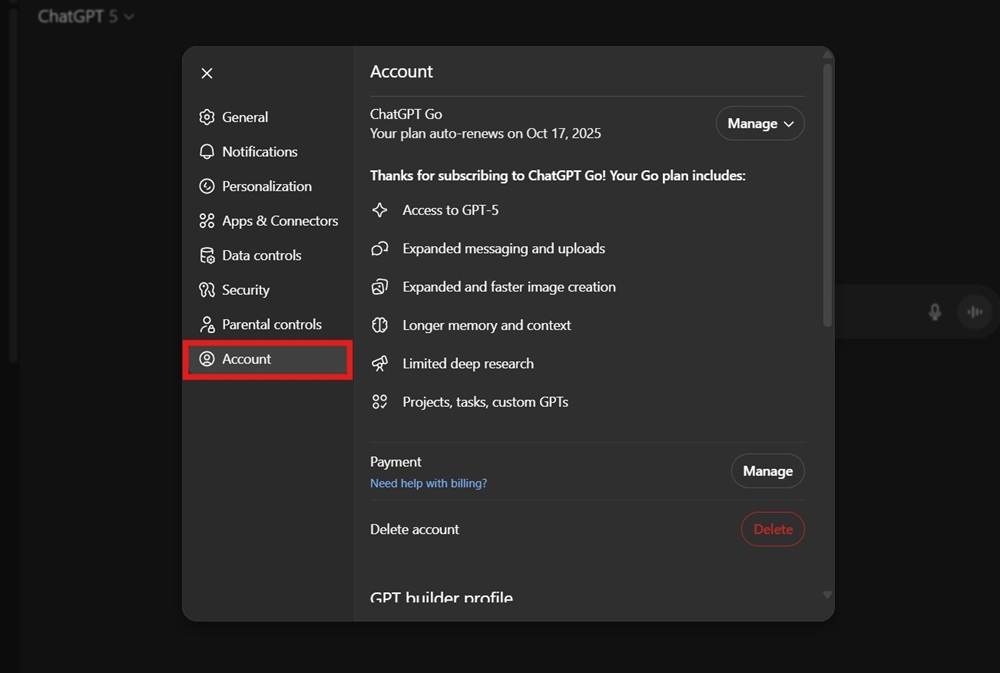
Step 3: Find the Account Section
Inside Settings, look for a tab called “Account.” This section handles deleting your account.
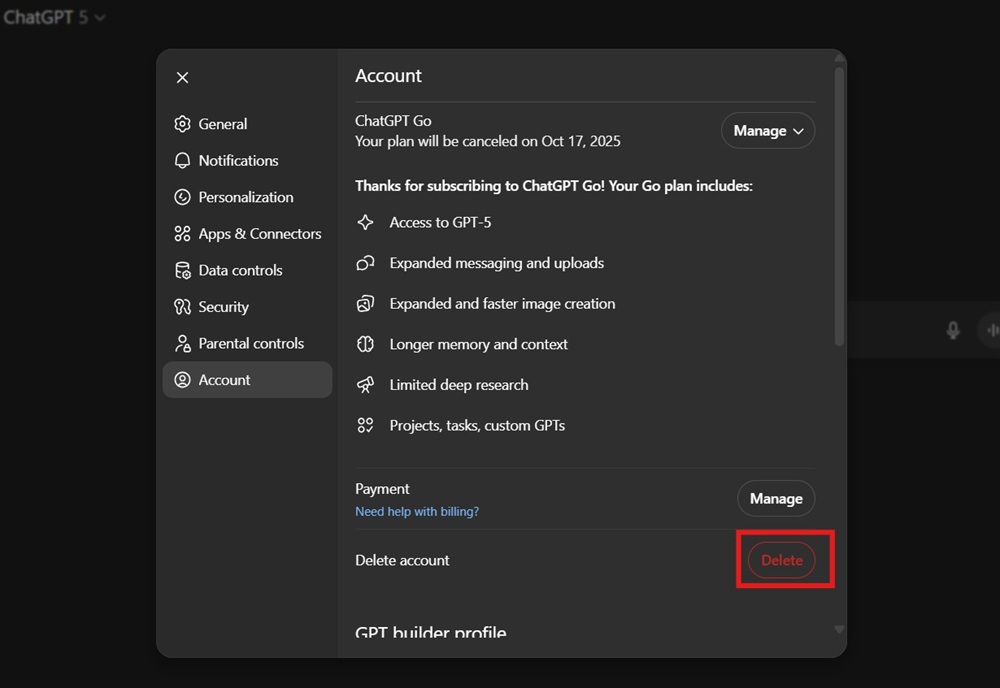
Step 4: Start the Deletion Process
In “Account,” you’ll see an option labeled “Delete Account” and a Delete button in front of it. Click it. The system may ask you to confirm your choice and enter your password again for security.
Step 5: Confirm and Wait
After confirming, the deletion request is submitted. ChatGPT will send you an email to verify the deletion. Click the link in your inbox, and your account will enter the deletion queue.
Troubleshooting Common Issues While Deleting a ChatGPT Account
Account deletion is usually smooth, but small hiccups can slow things down. If something goes wrong, these quick fixes solve most problems in minutes without the back-and-forth.
- Didn’t get the confirmation email? Check spam and promotions folders, wait a few minutes, then resend the request. Confirm you’re using the correct email.
- Deletion link expired? Restart the process from account settings and request a fresh link.
- Can’t log in? Reset your password first. Still locked out? Contact ChatGPT support; identity verification may be required.
Quick Recap: The ChatGPT Account Deletion Checklist
- Download any data you want to keep
- Cancel subscriptions and check billing
- Log out from all devices
- Go to Settings > Account > Delete Account
- Confirm via email and wait for the process to finish
Final Take: A Clean Exit, Done Right
Deleting your ChatGPT account in 2026 takes only a few clicks, but the decision deserves a moment of thought. Once it’s gone, there’s no rewind. Save what matters, cancel what costs money, and close every open loop. Do it once, do it properly, and you’ll avoid regret later.
There’s something satisfying about trimming digital clutter. Fewer accounts mean less noise, fewer security risks, and more control over your data. It’s not about quitting technology; it’s about using it on your own terms, with intention instead of habit.
And if you ever decide to return, starting fresh is easy. New account, clean slate, zero baggage. Until then, enjoy the rare feeling of a perfectly executed digital goodbye.
Also, read more about –
- How to Use ChatGPT Plus for Free
- How to Change Your ChatGPT Password
- How to Cancel ChatGPT Subscription
FAQs About Deleting Your ChatGPT Account
How Long Does Deletion Take?
Most accounts are deleted within a few days, but some data may take up to 30 days to disappear from all servers. You’ll lose access immediately after confirmation.
Does Deleting My ChatGPT Account Remove Me from Other OpenAI Services?
If you use the same login for other OpenAI services, deleting your ChatGPT account may affect those too. Check with support if you’re unsure.
