

Ever opened ChatGPT and got stuck staring at a loading spinner, a vague error, or a blank screen? You’re not alone. In 2026, ChatGPT powers everything from quick answers to full-scale workflows, so when it stalls, productivity takes a direct hit.
Maybe you’re racing a deadline, debugging code, drafting content, or just experimenting with AI. Whatever the case, downtime is frustrating. The good news: in most situations, the fix is simple, and you can solve it in minutes without technical skills or complicated troubleshooting.
In this guide, we’ll cut straight to the real reasons ChatGPT stops working and show you exactly how to fix each one. No fluff, no theory, no guesswork. Just clear, practical solutions to get you back up and running fast.
Most Common Reasons ChatGPT Isn’t Working
When ChatGPT stops responding, it’s usually not random. In most cases, the problem falls into one of a few predictable categories. Below, we break down the most common causes and exactly what they mean for you so you can diagnose the issue and fix it quickly.
1. Server Outages or Maintenance
Even the world’s most powerful AI systems need downtime. Server outages happen due to scheduled maintenance, infrastructure upgrades, sudden traffic spikes, or unexpected technical failures. When this occurs, ChatGPT may fail to load, respond slowly, or return error messages. Unfortunately, there’s no instant fix on your side. Your best move is to wait it out and check OpenAI’s status page. Most outages are resolved within minutes to a couple of hours.
2. Internet Connection Issues
ChatGPT relies on a stable internet connection to send prompts and receive responses in real time. Weak Wi-Fi, unstable mobile data, network congestion, or background downloads can all disrupt communication and cause loading failures or delayed responses. Test your connection speed, refresh the page, restart your router, or switch networks. In many cases, a simple connection reset instantly brings ChatGPT back to life.
3. Browser Problems
Outdated browsers, corrupted cache files, and incompatible extensions often interfere with how ChatGPT loads and runs. Over time, stored data and browser conflicts can slow performance or completely block proper rendering. Clear your browser cache, disable unnecessary extensions, or switch to a modern browser like Chrome, Firefox, or Edge. This alone resolves a surprising number of ChatGPT issues.
4. API Limits and Usage Caps
If you access ChatGPT through third-party tools or APIs, you may hit request limits or usage caps. High-volume usage, automation workflows, or sudden request bursts can trigger temporary rate limits to protect system stability. Wait for your usage window to reset, review your API dashboard, or upgrade your plan. Spacing out requests often prevents repeat throttling.
5. Account or Login Issues
Authentication errors, expired sessions, corrupted cookies, or third-party login disruptions can block access. This may result in endless loading screens, login loops, or permission errors. Log out, clear cookies, and sign back in. If using Google or Microsoft login, confirm those services are working properly. Most account issues resolve in under two minutes.
Specific Error Messages and What They Mean
When ChatGPT throws an error, it’s usually telling you exactly what’s wrong if you know how to read the signals. Here’s a fast, no-nonsense breakdown of the most common messages and what to do next.
- Network Error: Your connection dropped, or the server hiccupped. Refresh, check your internet, or switch networks.
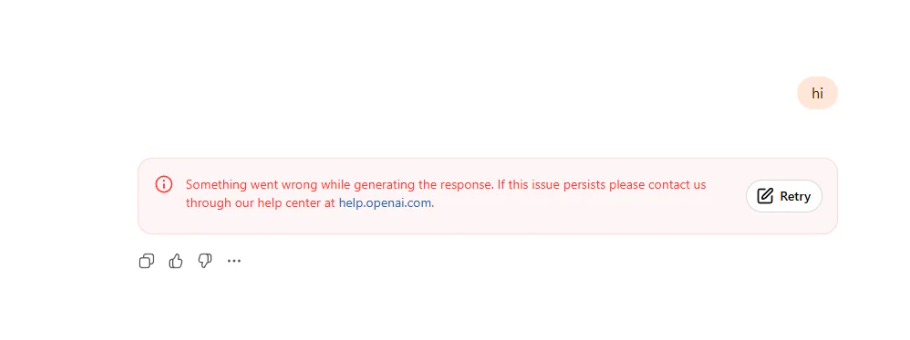
- Something Went Wrong: A generic backend glitch. Refresh, clear cache, or wait a minute.
- Too Many Requests: You hit rate limits. Pause briefly or review your API usage dashboard.
- Login Required: Your session expired. Log in again and enable cookies.
- Blank or Frozen Screen: Browser conflict or corrupted cache. Clear cache or switch browsers.
How to Troubleshoot ChatGPT When It’s Not Working
Now that you know what might be wrong, let’s get practical. Here’s how to troubleshoot ChatGPT:
Check ChatGPT’s Status Page
Before you start tweaking settings, visit ChatGPT’s official status page. If there’s a widespread outage or maintenance window, you’ll see it there. This saves you from unnecessary troubleshooting when the issue is out of your hands.
Test Your Internet Connection
Open another website or refresh your current page. If other sites are slow or not loading, the problem is likely your connection. Try moving closer to your router, switching devices, or using mobile data if possible.
Clear Your Browser Cache
Browser caches can get cluttered, leading to loading problems. Go to your browser settings, find the option to clear browsing data, and make sure to select cache and cookies. Restart your browser afterward and try accessing ChatGPT again.
Try a Different Browser or Device
Sometimes, the issue is specific to your current browser or device. Open ChatGPT in a different browser or on another device to see if the problem persists. This can quickly narrow down the culprit.
Disable Browser Extensions
Some extensions, especially ad blockers and privacy tools, can interfere with ChatGPT. Temporarily disable extensions one by one to see if any are causing the issue. If ChatGPT works after disabling one, you’ve found the troublemaker.
Check for Software Updates
Running an outdated browser or operating system can lead to compatibility issues. Make sure your browser and device are updated to the latest versions. Updates often include security and compatibility fixes that help services like ChatGPT run smoothly.
When ChatGPT Is Down: Alternatives and Workarounds
Sometimes, no amount of troubleshooting will help; ChatGPT is just plain down. Here’s what you can do while you wait:
- Check ChatGPT’s social media for updates (often, status updates are posted there first).
- Try a different AI chatbot or tool for urgent needs.
Remember, downtime is usually short. Most users are back up and running within an hour or two.
Advanced Troubleshooting for Persistent Issues
If basic fixes haven’t resolved the problem, it may be time to dig a little deeper. The following advanced troubleshooting steps can help identify and resolve more persistent access or loading issues with ChatGPT.
Check for Firewall or VPN Issues
Some firewalls or VPN services block access to ChatGPT. If you’re on a corporate or school network, restrictions may be in place. Try disconnecting your VPN or testing on a different network to see if access improves.
Inspect JavaScript Errors
If you’re tech-savvy, open your browser’s developer tools and check the console for errors. JavaScript problems can prevent ChatGPT from loading. While not everyone will use this tip, it can help pinpoint obscure issues.
Flush DNS Cache
DNS issues can block access to certain sites. Flushing your DNS cache can help. On Windows, open Command Prompt and type ipconfig /flushdns. On Mac, use sudo dscacheutil -flushcache; sudo killall -HUP mDNSResponder in Terminal.
Try Incognito or Private Mode
Private browsing disables most extensions and uses a fresh cache. Open ChatGPT in Incognito or Private mode to see if it works better. If it does, the issue likely lies with your cached data or extensions.
Contact Support
If you’ve tried everything and ChatGPT still isn’t working, it’s time to reach out for help. Use the official support channels and provide details about your issue, browser, and device. Screenshots can help support teams diagnose problems faster.
Preventing Future Issues With ChatGPT (2026 Tips)
Most ChatGPT problems are avoidable. A few smart habits can dramatically reduce downtime, boost reliability, and keep your workflow smooth. Here’s how to stay ahead in 2026:
- Keep Everything Updated: Enable auto-updates for your browser and device to eliminate bugs and compatibility issues.
- Use Trusted Browsers: Stick to Chrome, Firefox, or Edge for the most stable performance.
- Limit Heavy Extensions: Disable ad blockers or privacy tools that interfere with modern web apps.
- Track Your Usage: Monitor message and API limits to prevent sudden access blocks.
- Bookmark the Status Page: Instantly confirm outages and avoid wasted troubleshooting.
Final Thoughts: Getting ChatGPT Working Again
When ChatGPT stops working, it’s rarely a big problem. Most issues come down to simple causes like network drops, browser conflicts, usage limits, or routine server updates. A few quick checks usually get things running again in minutes.
On the rare occasions it’s a platform-side issue, patience is the best fix. Step away, refresh after a short break, and let the system rebalance. ChatGPT is designed to recover fast even during heavy global demand.
If problems persist, check the status page or contact support. Save this guide, and next time ChatGPT slows down, you’ll know exactly how to get back on track fast, stress-free, and fully optimized for 2026.
Also, read more about –
- ChatGPT Message Limits in 2026: All You Need to Know
- ChatGPT Bad Gateway Error: What It Means and How to Fix It (2026 Guide)
- Can You Use ChatGPT Offline in 2026? Honest Answers and Tricks
- Why Is ChatGPT So Slow? Real Reasons (And Faster Fixes) for 2026
FAQs About ChatGPT Not Working
Why Does ChatGPT Keep Logging Me Out?
This can happen due to expired sessions, cookie settings, or browser security features. Make sure cookies are enabled and avoid clearing them too often. If you’re on a shared device, log out when done to avoid conflicts.
Can I Use ChatGPT Without an Account?
Some versions allow limited access without signing in, but most features require an account. If you’re having trouble logging in, reset your password or check your email for verification steps.
What Should I Do If I Get a “Too Many Requests” Error?
Wait a few minutes and try again. If you’re using the API, check your plan’s rate limits. If you hit usage caps often, consider adjusting your workflow or upgrading your plan.
