
If you’re here, chances are ChatGPT just hit you with a “Bad Gateway” error. Frustrating? Absolutely. But also very common and usually easy to fix.
A Bad Gateway error simply means ChatGPT couldn’t properly communicate with its backend servers. In plain English: something broke in the connection chain. It’s rarely your fault, and most of the time, it resolves in minutes.
In this guide, you’ll learn exactly what the ChatGPT Bad Gateway error means, why it happens, and how to fix it fast. No fluff. No guesswork. Just practical solutions that work in 2026. Let’s get you back to chatting.
What Is the ChatGPT Bad Gateway Error?
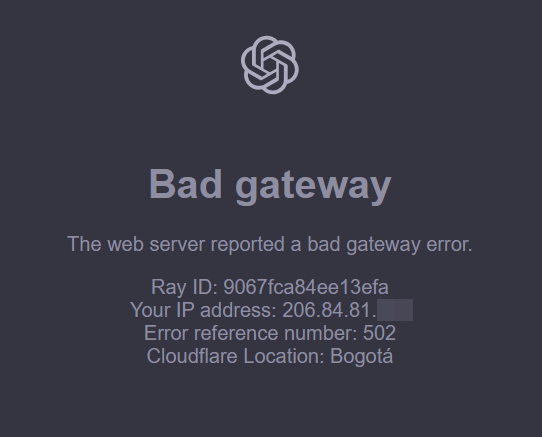
The ChatGPT Bad Gateway error, labelled as(error 502) means one server didn’t get a valid response from another. Your browser successfully reached ChatGPT, but ChatGPT couldn’t retrieve the data it needed from its backend systems. Result: the request fails, and you see the error.
This isn’t unique to ChatGPT. It’s a common web error that appears whenever communication between servers breaks down. In ChatGPT’s case, it usually points to temporary server overload, infrastructure hiccups, or network routing issues, not something you caused. Think of it as a dropped connection in a multi-step relay.
Main Causes of ChatGPT Bad Gateway Errors
Most Bad Gateway errors happen due to temporary server connection issues. This can be caused by heavy traffic, maintenance, updates, or short network disruptions. Here are the most common reasons and what they mean for you:
Server Overload
When millions of users hit ChatGPT at the same time, servers can get overwhelmed. During traffic spikes, requests pile up faster than systems can process them, leading to timeouts and failed handoffs. The result? A 502 error. This usually clears quickly once demand drops or additional computing capacity is automatically deployed.
Backend Server Issues
ChatGPT relies on multiple backend systems working together. If even one critical server becomes slow, unstable, or temporarily offline, the entire request chain can break. When the gateway server fails to receive a valid response, it throws a Bad Gateway error. These incidents are typically short-lived and resolved by automated recovery systems.
Network Glitches
Brief network disruptions between your device and ChatGPT’s servers can interrupt data flow mid-request. This can happen due to ISP routing issues, DNS delays, or regional connectivity hiccups. Even millisecond-level interruptions can trigger a 502 error. Most network glitches self-correct within seconds, making reloads surprisingly effective.
Browser or App Problems
Corrupted cache files, broken cookies, outdated extensions, or compatibility bugs inside your browser or ChatGPT app can disrupt normal communication. These issues may block requests before they reach ChatGPT’s servers. Clearing cache, disabling extensions, or updating the app usually resolves this category of error quickly.
Maintenance or System Upgrades
During infrastructure upgrades, model deployments, or security updates, parts of ChatGPT’s backend may restart. While these operations are designed to minimise downtime, brief service interruptions can occur. When this happens, users may temporarily see a Bad Gateway error until systems fully stabilise and synchronisation completes.
Advanced Fixes for Persistent Bad Gateway Errors
If the Bad Gateway error keeps coming back, you may be dealing with a deeper system or network issue. These advanced fixes target hidden causes that quick refreshes won’t solve and usually restore access fast.
- Flush your DNS cache: Clears outdated network records that can block server connections. Often fixes stubborn loading failures in seconds.
- Check Firewall or Antivirus Blocks: Security tools sometimes block legitimate traffic. Temporarily disable, test, then allowlist ChatGPT.
- Update your Browser or App: Older versions can trigger compatibility issues. Updates fix bugs and restore smooth connectivity.
- Contact ChatGPT support: If nothing works, report the issue with screenshots and steps, and try to speed up backend troubleshooting.
How to Fix ChatGPT Bad Gateway: Step-by-Step Solutions
If you’re seeing a ChatGPT Bad Gateway error, start with the quickest fixes first. Most issues are resolved in the first two steps; the rest help troubleshoot deeper problems.
Step 1: Refresh the Page
A simple refresh often fixes temporary server handoff issues. Reload the page or fully restart the ChatGPT app to reset the connection. This clears short-lived glitches, stalled requests, and minor backend delays. In many cases, it instantly restores access without needing further troubleshooting.
Step 2: Clear Your Browser Cache
Corrupted or outdated cache files can block clean server communication. Clearing your cache forces your browser to reload fresh data directly from ChatGPT’s servers. This removes broken scripts, stale cookies, and conflicting site assets that commonly trigger 502 errors during updates or traffic spikes.
Step 3: Try a Different Browser or Device
Switching browsers or devices helps identify whether the issue is local. If ChatGPT loads normally elsewhere, your primary setup likely has a configuration, extension, or cache problem. This quick test saves time and immediately narrows down where the fault actually lies.
Step 4: Check ChatGPT’s Status Page
Before digging deeper, confirm whether ChatGPT itself is experiencing downtime or maintenance. A quick status page reveals ongoing outages, performance degradation, or infrastructure upgrades. If systems are down globally, waiting is the only real fix—and usually the fastest one.
Step 5: Restart Your Internet Connection
Unstable connections and routing hiccups frequently trigger Bad Gateway errors. Power-cycle your modem and router to reset local routing tables and clear network congestion. This refreshes your connection path and often resolves intermittent connectivity issues in under two minutes.
Step 6: Disable Browser Extensions
Security, privacy, and ad-blocking extensions can disrupt API calls and server handshakes. Disable extensions temporarily and reload ChatGPT. If it works, re-enable them one by one to identify the conflicting tool and whitelist ChatGPT for smooth access.
Step 7: Use a VPN (or Disconnect From One)
VPN routing can either fix or cause 502 errors, depending on server location and congestion. If you’re using a VPN, disconnect and test. If you’re not, try connecting through a reputable VPN to bypass local ISP routing problems and restore stable access.
When to Worry: Is It Just You or Everyone?
Before diving into deep troubleshooting, check whether the problem is local or global. A quick look at ChatGPT’s status page or trusted outage trackers will instantly show if thousands of users are affected. If it’s a system-wide issue, there’s nothing to fix on your end just wait it out.
If no outage is reported, the problem is likely local, and the steps above should resolve it. Either way, don’t stress. Bad Gateway errors are almost always temporary and rarely signal anything serious.
What Not to Do When You See a Bad Gateway Error
When fixing a Bad Gateway error, avoid panic-driven moves. Rushing through random fixes often wastes time and creates new problems. These quick guidelines keep your troubleshooting smart, focused, and effective.
- Don’t refresh nonstop: Rapid refreshes increase server load and rarely fix backend issues. Wait 60–90 seconds between attempts.
- Don’t reset everything immediately: Start with simple fixes first. Clearing all data, cookies, and settings should be a last resort, not step one.
- Don’t assume it’s your internet: Check ChatGPT’s system status and test another device before blaming your connection or calling your ISP.
How to Avoid ChatGPT Bad Gateway Errors in the Future
You can’t control server issues, but you can reduce 502 errors by improving connection stability, avoiding browser conflicts, and steering clear of peak-traffic slowdowns.
Bookmark the Status Page
Keeping ChatGPT’s official status page bookmarked saves time and unnecessary troubleshooting. When an error appears, a quick check instantly confirms whether the issue is widespread. This prevents wasted effort and helps you decide whether to wait it out or start local troubleshooting immediately.
Keep Software Updated
Outdated browsers, operating systems, and apps are common causes of connection conflicts. Regular updates deliver performance improvements, security patches, and compatibility fixes that prevent communication breakdowns. Enable automatic updates to ensure your system stays aligned with ChatGPT’s evolving infrastructure in 2026.
Limit Open Tabs and Sessions
Running multiple ChatGPT sessions at once increases browser memory usage and multiplies server requests. This raises the risk of connection timeouts and 502 errors. Sticking to a single active session keeps performance stable and reduces unnecessary strain on both your system and ChatGPT’s backend.
Monitor Peak Usage Times
ChatGPT usage spikes during global work hours, product launches, and major updates. During these windows, server load increases and errors become more likely. Shifting your usage to quieter hours dramatically improves reliability, speed, and overall response consistency.
ChatGPT Bad Gateway Doesn’t Have to Ruin Your Day
A Bad Gateway error can feel like a full stop but in reality, it’s usually just a brief pause. In 2026, most 502 errors are caused by short-lived traffic spikes, backend updates, or momentary network glitches. With the right steps, you can fix the issue in minutes and move on without breaking your flow.
The key is knowing what to do and what not to do. Instead of panic-refreshing or randomly changing settings, follow a clear process. Check system status, apply simple fixes, and escalate only when needed. That approach saves time, avoids frustration, and gets you back to productive work faster.
Bookmark this guide so you’re never guessing again. The next time ChatGPT throws a gateway error, you’ll know exactly how to handle it calmly, quickly, and confidently. Because tech problems are inevitable, but wasted time doesn’t have to be.
Also, read more about –
- ChatGPT Message Limits in 2026: All You Need to Know
- Can You Use ChatGPT Offline in 2026? Honest Answers and Tricks
- Why Is ChatGPT So Slow? Real Reasons (And Faster Fixes) for 2026
- Why Is ChatGPT Not Working? Top Reasons & Quick Fixes for 2026
FAQs About ChatGPT Bad Gateway
Can I Prevent the Error Completely?
You can reduce your chances by following the tips above, but you can’t control server-side issues. Sometimes you just have to wait it out. The good news is these errors are usually short-lived.
Does the Bad Gateway Error Mean ChatGPT Is Down?
Not always. Sometimes it’s a temporary hiccup with a single server or your connection. But if you see the error for more than 10 minutes, check the status page for updates.
